On iPhone, you can log an expense without opening the app or typing anything — ideal when you’re driving or your hands are full.
The basic flow
- Say: “Hey Siri, log expense in Clarius.”
- Siri asks “What’s the amount?” — say the number, e.g. “twelve dollars.”
- Siri confirms “Added $12.00 to Clarius” — and the expense is saved. The app doesn’t even open.
The next time you open Clarius, the expense is there (it’s applied when the app comes to the foreground).
Why does Siri ask for the amount separately? Apple doesn’t allow a dollar amount to be spoken inside the trigger phrase — only categories can be. So the amount is always a quick follow-up question.
Say the category too (one phrase)
To file it straight into the right category, name the category in the phrase:
- “Hey Siri, log a Groceries expense in Clarius” → “fifteen dollars” → “Added $15.00 to Groceries in Clarius.”
Use any of your real category names, including two-word ones like “Dining Out.”
If the category doesn’t match one of yours (say, “Coffee” when you have no Coffee category), Clarius files the expense under your most-used category and keeps the spoken word — “Coffee” — as the note, so nothing is lost. Siri will say “Added $5.00 for Coffee in Clarius” to signal it became a note rather than a category.
If you skip the category entirely, the expense goes to your most-used category.
All the phrases
Every phrase must end with “in Clarius” or “to Clarius.”
Log an expense
- “Log expense in Clarius”
- “Add an expense in Clarius”
- “Add expense to Clarius”
- “Record expense in Clarius”
- “Log a [Category] expense in Clarius”
- “Add a [Category] expense to Clarius”
Ask about your budget (these just speak an answer — the app stays closed)
- “What’s my balance in Clarius”
- “Am I on track in Clarius”
- “How’s my trip budget in Clarius”
Tip: avoid “Add money to Clarius” — “add money to…” is the phrase iOS uses for Apple Wallet, so Siri may ask whether you meant Wallet. “Log expense in Clarius” avoids that entirely.
Finding the phrases on your phone
You don’t have to memorize them:
- On the Add Expense screen, tap the microphone button (top-right) to see example phrases using your own category names.
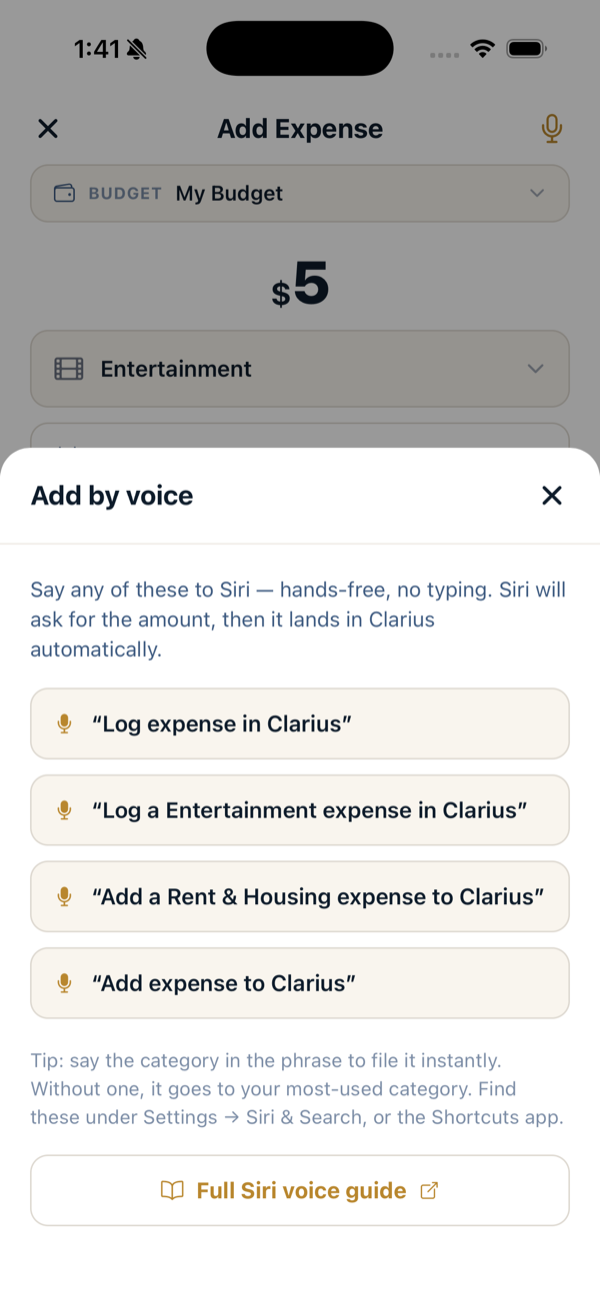
- In Profile → Help & Support, swipe to the “Add by Voice with Siri” page.
- In Apple’s Shortcuts app, search “Clarius” to see every shortcut.
Where the expense lands
- Budget: your first regular budget (or your active trip if you have no regular budget).
- Category: the one you spoke if it matches; otherwise your most-used category.
- Date: the day the app next applies it.
Troubleshooting
- “I couldn’t find your budget.” Siri reads numbers saved the last time the app was open. Open Clarius once, unlock it, and view your budget — then try again.
- The expense isn’t showing up. It’s applied when you next open and unlock Clarius. If you have no budget yet, it waits until you create one.
- Siri asks “Clarius or Wallet?” You used a “add money to…” style phrase. Say “Log expense in Clarius” instead.
- No Clarius shortcuts in the Shortcuts app. Open Clarius once and wait a minute, then look again. If they’re still missing, restart your iPhone.
- Amounts are spoken in US dollars regardless of your display currency.