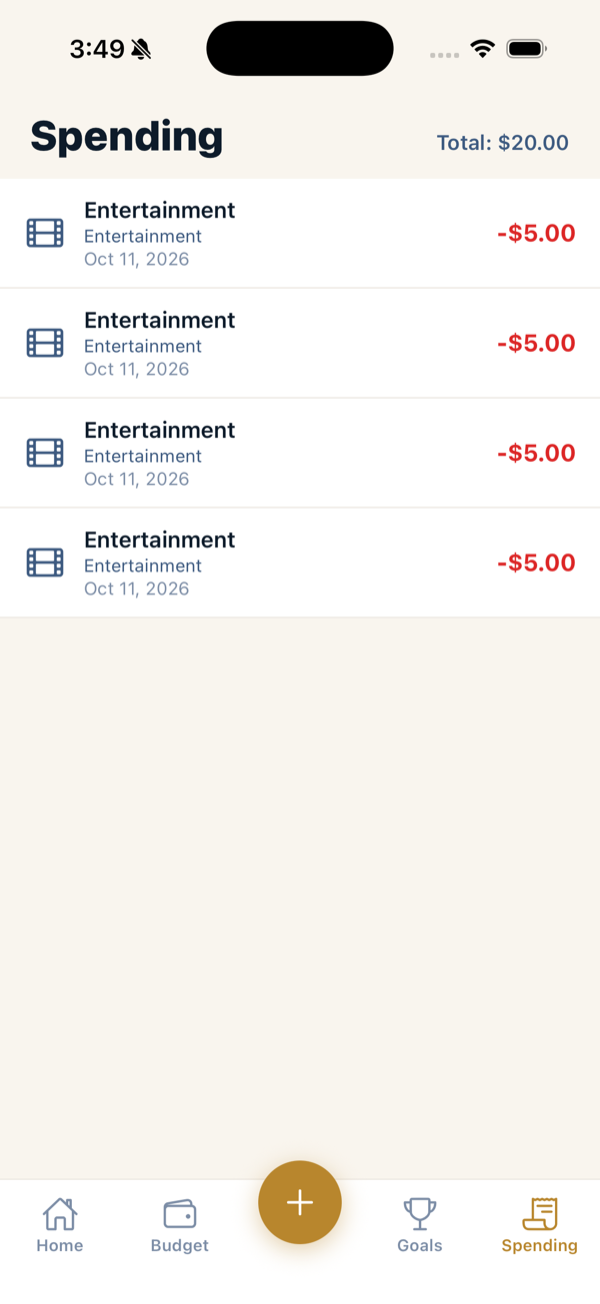
Clarius is built so logging an expense takes seconds. Here’s the fast path and the extras.
The fast path (≈5 seconds)
- Tap the + button in the center of the tab bar.
- Type the amount on the keypad.
- Tap a category (the picker opens pre-set to your most-used one).
- Tap Add $X.
The amount keypad and the Add button stay fixed on screen, so you never have to scroll to finish.
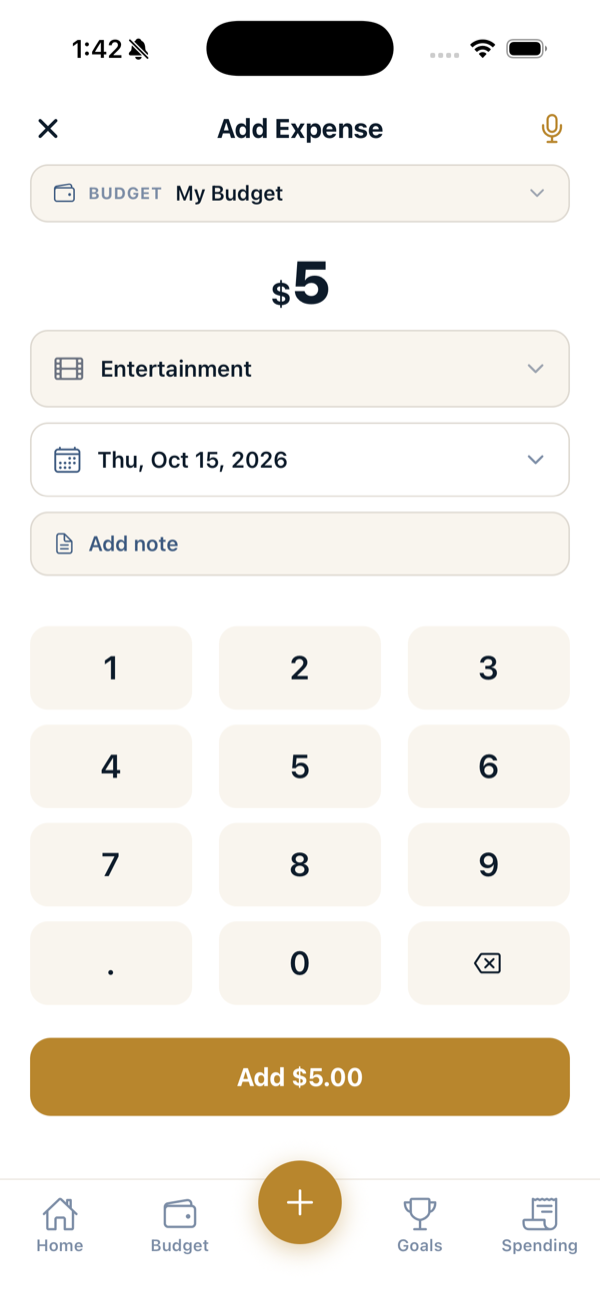
Choosing a category
Tap the category row to open the picker. Categories are smart-sorted — the ones you use most often (and most recently) rise to the top, so the right one is usually first. If any categories have recurring bills attached, they appear in a separate Bills & Recurring section at the bottom.
The expense screen also defaults to your most-used category, so for everyday spending you often don’t need to change it at all.
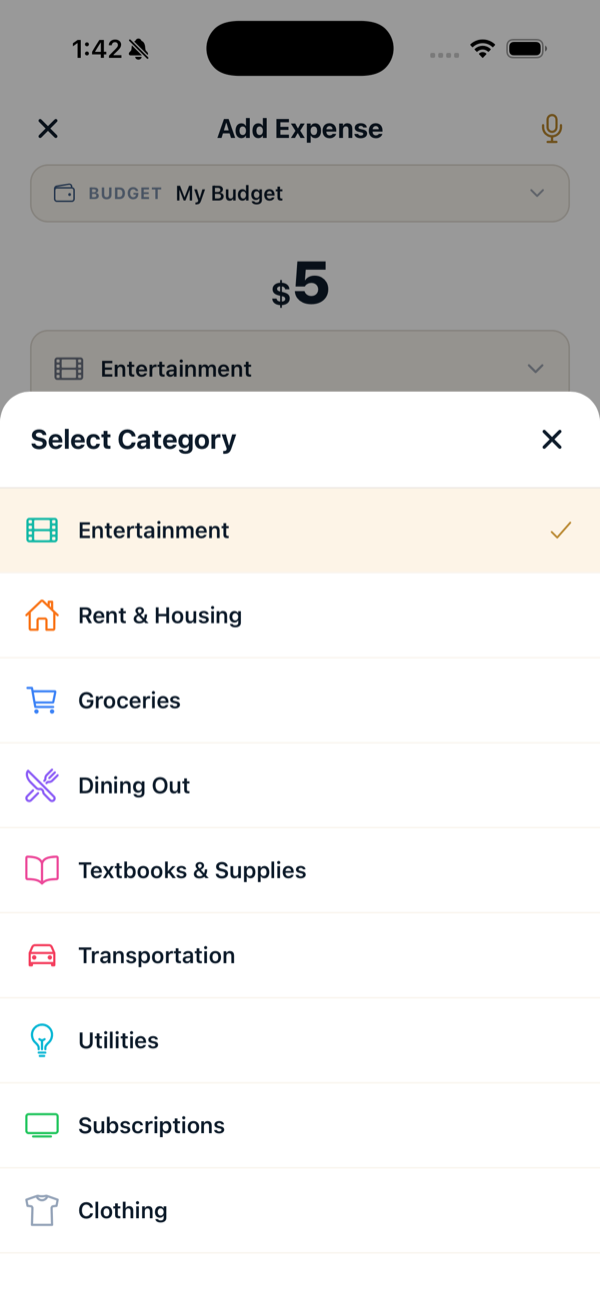
Adding a note
Tap Add note to attach a short description (e.g. “lunch with Sam”). The note field opens in its own sheet so the keyboard never covers the form — no scrolling required.
Changing the date
New expenses are dated today by default. Tap the date row to pick a different day (for example, to log something you forgot yesterday).
Picking a different budget
If you have more than one budget (or an active trip), tap the Budget chip at the top of the Add screen to switch where the expense is recorded.
Editing or deleting
Open the Spending tab to see everything you’ve logged. Tap an entry to edit its amount, category, note, or date — or to delete it.