A budget in Clarius is a set of categories, each with a spending limit, over a period (weekly or monthly).
Create or edit a budget
- Open the Budget tab.
- Create a budget and choose Weekly or Monthly.
- Add categories and set an amount for each. The total of your category limits is your budget.
You can rename categories, change their limits, and add or remove them at any time.
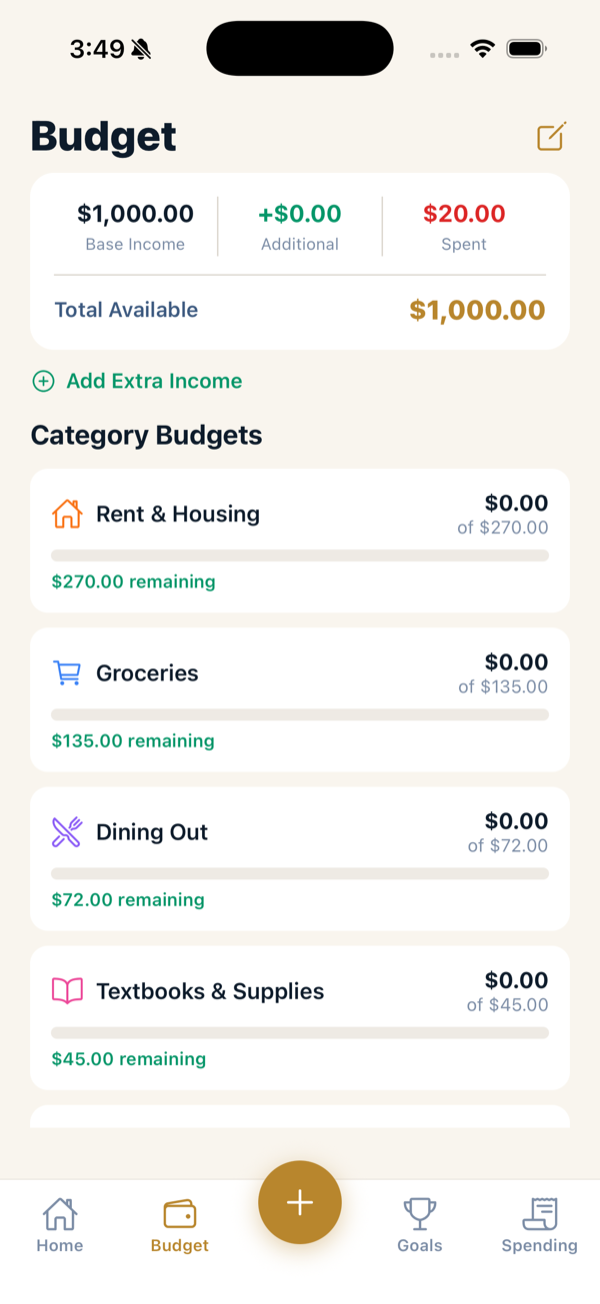
Reading your budget
- Each category shows spent vs. allocated and the amount remaining, with a progress bar.
- The Home tab shows your overall remaining balance for the period and a Budget Health score so you can tell at a glance whether you’re on track.
Extra income
Got paid, or received some money outside your normal plan? Tap Add Extra Income on the Budget tab so it’s reflected in what you have available.
Multiple budgets
You can keep more than one budget (for example, a personal budget plus a shared one). Free includes 1 budget; Plus and Family include up to 5 — trip budgets are separate and don’t count toward that limit. When adding an expense, use the Budget chip at the top of the Add screen to pick which one it applies to.
Tips
- Start with a few broad categories rather than many tiny ones — it’s easier to keep up with.
- If a category is always over or always under, adjust its limit. A budget you actually follow beats a “perfect” one you ignore.
- See Recurring bills & payments to automate fixed costs like rent or subscriptions.