Welcome to Clarius. Here’s everything you need to go from install to tracking your first expense.
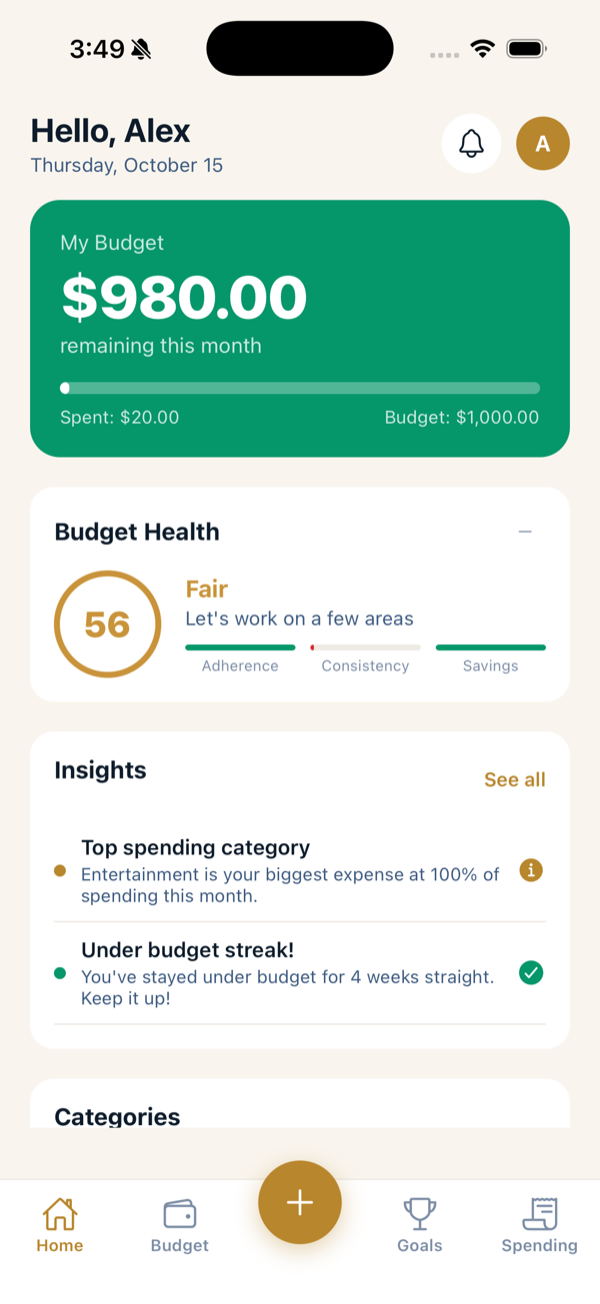
1. Create your account
On first launch you’ll be asked to Sign in with Apple. This is a one-tap sign-in — there’s no separate password to remember, and it’s what lets you unlock Plus and Family plans and (optionally) sync across devices. Signing in does not upload your budgets; your financial data stays on your device by default.
2. Set a PIN
After signing in, you’ll create a 6-digit PIN. You’ll enter it each time you open the app. If your device supports Face ID / Touch ID, you can turn it on so a glance or a touch unlocks the app instead of typing the PIN.
Your PIN protects the app on your device. Keep it somewhere safe — for privacy reasons we can’t recover or reset it for you.
3. Create your first budget
- Go to the Budget tab.
- Create a budget and choose a period — Weekly or Monthly.
- Add categories (e.g. Groceries, Dining Out, Transport) and set an amount for each. These are your spending limits.
You can edit categories and amounts any time.
4. Log your first expense
Tap the + button in the center of the tab bar, type an amount, pick a category, and tap Add. That’s the whole flow — see Adding expenses for the fast path, and Add by voice with Siri to do it hands-free.
Where things live
- Home — your budget health, remaining balance, and recent activity at a glance.
- Budget — your budgets, categories, and recurring bills.
- Goals — savings goals.
- Spending — a searchable list of everything you’ve logged.
- Profile — security, appearance, plan, cloud sync, backup, and Help & Support.